Показаны сообщения с ярлыком SAP BusinessObjects. Показать все сообщения

понедельник, 2 июня 2014 г.

SAP BO on Windows 7

I decided to install SAP BO 4.1 SP3 on Windows 7, however I got error, that I can't perform installation on Windows 7 and I need at least Windows Server 2008.

But you can easily jump this barrier and install SAP BO on your laptop with Windows 7. From my experience, you need at least 4 Gb RAM.

How to do it:

Go to 
<..>\DATA_UNITS\BusinessObjectsServer_win\dunit\product.businessobjects64-4.0-core-32
And modify xml file product.seed.xml. I've done it via notepad++. You can do it even in notepad.

Find this part:

<prerequisite id="getWindowsVersionPreReq 2" description="#prereq.WindowsServerVersionPreReqText#" reason="#prereq.WindowsServerVersionPreReqNotOkText#" type="error">    <action id="CompareVersion">      <arg name="maxVersion" value=""/>      <arg name="minVersion" value="6.0"/>      <arg name="VersionNeedToCompare" value="[$os.version]"/>      <arg name="Property" value="Windows2008Above"/>      <arg name="AllowedSuffix" value="Server"/>    </action>    <condition property="Windows2008Above" value="1"/>  </prerequisite>

You need to replace "Server" by "Workstation" and it will works.

четверг, 9 января 2014 г.

SAP BO 4 Performance issue

I got real problems with performance in BI Launch PAD. For instance, my reports were opening very long time, navigation in BI Launch Pad was awful. Business Users begat to claim.

At the end I fixed this problem. And I got very useful and helpful recipe for this problem.
Let's start.

1. Of course, we should start from updating SAP BO. Last available version is SAP BO SP2. Just took last one.

2.  Let's modify the Tomcat setting, because by default they have low value.
o   JavaHeapSize (-Xmx) from 2G to 4G 
o   MaxThreads from default (200) to 900 
2.1 JavaHeapSize we should modify:   
cd <bo inst folder>/sap_bobj/tomcat/bin 
nano setenv.sh


# set the JAVA_OPTS for tomcat
JAVA_OPTS="-d64 -Dbobj.enterprise.home=${BOBJEDIR}enterprise_xi40 -Djava.awt.headless=true -Djava.net.preferIPv4Stack=false -Xmx4g -XX:MaxPermSize=384m -XX:+HeapDumpOnOutOfMemoryError -Xloggc:/data/bo4dev/sap_bobj/tomcat/logs/tomcat.gc.log -XX:+PrintGCDetails -XX:+UseParallelOldGC"

2.2 MaxThreads we would modify:
cd /data/bo4dev/sap_bobj/tomcat/conf
nano server.xml


Define a non-SSL HTTP/1.1 Connector on port 9090
    -->
<Connector port="9090" protocol="HTTP/1.1" connectionTimeout="20000" redirectPort="8443" maxThreads="900" URIEncoding="UTF-8"/>
<!-- A "Connector" using the shared thread pool-->
<!--
    <Connector executor="tomcatThreadPool"
               port="9090" protocol="HTTP/1.1"
               connectionTimeout="20000"
               redirectPort="8443" />
    -->


3. Cleaning of old installed patches and service packs from BO. What does it mean?
Just go to <bo inst folder> and run ./modifyOrRemoveProducts.sh (for Linux):

It is clear that i have many various installation on my server. But it is important to delete old installation!
Now you see, that i deleted old one:


4. Cleaning of logging directory, in  <bo inst folder>/sap_bobj/logging
o   Deleting Trace-Files
o   Deleting Logs old than 30 days
5. Tuning APS, for start we can use CMC Wizard. 
6. APS properties for tracing set to unspecified (-> means bo_trace.ini are used)
Level
Description
Unspecified
Force the use of BO_trace.ini to be used
None
Only critical events such as failures will be logged
Low
Ignores warning and status messages
Medium
Only Status messages with least important will be ignored
High
Includes all the logging messages
7. Correction of blocking auditing activities, delete auditing events old 30 days:
In CMC go to Auditing and change parameter "Delete Events Older Than (Days)" on 30 from 365


8. Disabling of unused services in the CMC, for instance, Crystal, Analyses services.
9. Reorganisation of BO-Repository and BO-Auditing in DB2  (runstats) (Script is available in the filesystem). This one is high important point. As you know, every database has to manage its statistics according to number of rows. And if you do not collect stat, than you performance as well as refresh rate are decreasing. I used DB2 db, because it was by default with distrib for Linux.

Now we have to collect stat on all DB2 tables in our BO repository as well as AUDIT repository. 

Go to DB2 folder, you can find it in home folder of BO linux user:
cd <user's home folder>/sqllib/bin
There are two files:

runstats_audit.out
runstats_repo.out

They are responsible for collecting of DB2 statistics.
Just perform these scripts:
#db2 -tvf runstats_audit.out
#db2 -tvf runstats_repo.out

You have to schedule this task, and perform these scripts once per week.
You can do it via CMC:
CMC->Applications->Right Button on CMC and choose Program Objects Rights.


Mark "Run Scripts/binaries" and enter credentials for OS.
Or you can schedule it via your OS. For instance use crontab in Linux:


0 23  * * 7 /opt/bo4dev/sqllib/bin/runstats.sh >/dev/null 2&>1


For instance Shell Script for Linux:

db2 connect to boe14
db2 -tvf runstats_repo.out
db2 connect to audboe14
db2 -tvf runstats_audit.out


Than schedule this sh by cron.

In summary, performance of BO was increased dramatically.

понедельник, 30 декабря 2013 г.

SAP BO events and schedule based on events


SAP BO provide us several capabilities for convenient schedule tasks. Let's consider events for this purpose. Special for this BO has own server - EVENT server.

First of all, go to CMC and click on "Events":


Custom Event - manual event, has two properties name and description.

File Event - Event, which are based on file. You can place file in any folder and you have to notice full path. BO wait, when this file will be refreshed. For instance, when ETL is finished, ETL tool can update file.


Scheduling Event - event, which generates, when one report is scheduled. Can be applied for success, and failure.

The most useful events are File and Schedule.

Let's consider File event:

Go to Events->System Events->Create Event->Choose File


!!!in file name you should specify full path of file!!!

Than, we can schedule report as usual and in event tab choose Available events and our event ETL_READY


Now, when ETL will be finished, etl tool will trigger our file and report will start refreshing.

On the other hand, we can use schedule event for triggering our reports.
Go to Events->System Events->Create Event->Choose Schedule


Again, specify name and choose which result do we need i.e. Success, Failure or both.

Now we can schedule one report and choose  Available Schedule Event - BL_finished:


When, we want to schedule any report, we just choose our event in "Available event" i.e. first report creates event during schedule job and second wait it.

PS We can also get ETL flag not only from file event in case if etl tool write metadata. We can create universe based on derive table, for instance:


select to_number(decode( count(*), 0, 'X',1)) from rocket_dwh_cmn.stl$v where sys='BOB'
and sysdate - ed < 5/24/60
and status=0

Than schedule report with 5 minuts interval, and BO will wait, when metadata table will give fresh data. This statement will give us error, if SELECT returns 0 rows and sysdate - ed < 5/24/60 special for compare time difference with 5 minute interval.
It's easy example that display, one of SAP BO tricks when we don't want to send empty report.


среда, 25 декабря 2013 г.

SAP BO bursting report i.e. schedule one report according security to many users

Everyone use to schedule reports for business users, however, what to do if you have special security profiles for users, for instance, we have "Sales report" and want to schedule it for our users from different cities and they can see only data of their own city.

As usual, we can schedule it several times with condition such as where city = ... But what to do if we have 30 cities and their number constantly grow?

Special for this case SAP BO suggest us use "Bursting" which can be set in CMC.

Let's see step by step manual:

1. Create report


2.Create profiles in CMC. Choose users and data values.


2.1 In Properties name our profile


2.2 In Profile Targets choose Universe and object includes data values.

2.3 In Profile Values determine users and data values, which they will receive.


2.4  As a result we may see data values according users.


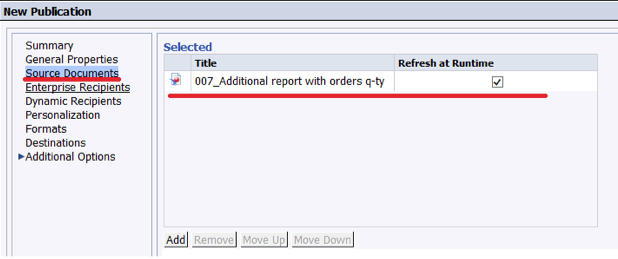
3 Public report


3.1 Name report


3.2 Choose report for sending


3.3 Choose users marked in profiles (2.3)


3.4 Determine profile on Personalization


3.5 Format of report

 3.6 Method of sending. Please pay attention on “From” & “To”, we have to use the same phrase.


 3.7 Determine recurrence

 3.8 Check sending, by clicking “Run Now”


That's it.
As a result, every user will get data according his/her security profile.